 Firestore Data Analyzer
User Guide
Everything you need to explore, analyze, and export your Firestore data with the Firestore Data Analyzer Chrome extension.
Getting started
Firestore Data Analyzer lives in Chrome's side panel and connects directly to your own Firebase project. Setup takes about two minutes:
- Install the extension from the Chrome Web Store.
- Open your Firebase console at
console.firebase.google.comand navigate into the project you want to analyze. A small banner in the corner offers to connect the project — one click takes you to your project's Settings page, where the extension picks up the connection details by itself. Nothing to copy, no setup forms. - Open the side panel by clicking the extension's toolbar icon, or the floating Analyze handle that appears at the right edge of console pages.
- Sign in with an email/password account from your project's Firebase Authentication (see Signing in).
- Load a collection from the dropdown and start exploring.
Which Firebase plan do I need? Any — including the free Spark plan. The extension reads your data the same way your own app does. No BigQuery, no Blaze plan, no billing account.
Signing in
The extension signs in against your own Firebase project's Authentication — not a Firestore Data Analyzer account. Use an email/password user that exists in your project (Firebase console → Authentication → Users). If your project doesn't have one yet, you can create an account directly from the extension's sign-up form, or add a user in the console first.
Your credentials go directly to Firebase Authentication (a Google service). They are never seen, stored, or transmitted anywhere else. The extension only remembers your email locally to pre-fill the login field.
"Invalid credentials" on sign-in? Firebase intentionally merges "no such user" and "wrong password" into one error to protect against email enumeration. Double-check both the email and the password — or use the reset link below.
Password reset
Click Forgot password? on the sign-in form. Type just your email — no password required — and the extension sends Firebase's built-in password reset email for your project. A confirmation toast tells you where the email went; follow its link to set a new password, then sign in normally.
If the email doesn't arrive, check spam, and confirm the address actually exists as a user in your project's Authentication panel.
Loading collections
Auto-discovery
As you browse Firestore → Data in the Firebase console, the extension automatically remembers the collections you visit and adds them to its dropdown — no typing, no clicks. Just browse your data once and they're there.
Manual entry
You can always type a collection name directly. Manually added names merge into the same dropdown, de-duplicated. If the dropdown is empty, the sidebar shows a hint: open the console's Firestore Data tab to refresh the list.
Progressive loading
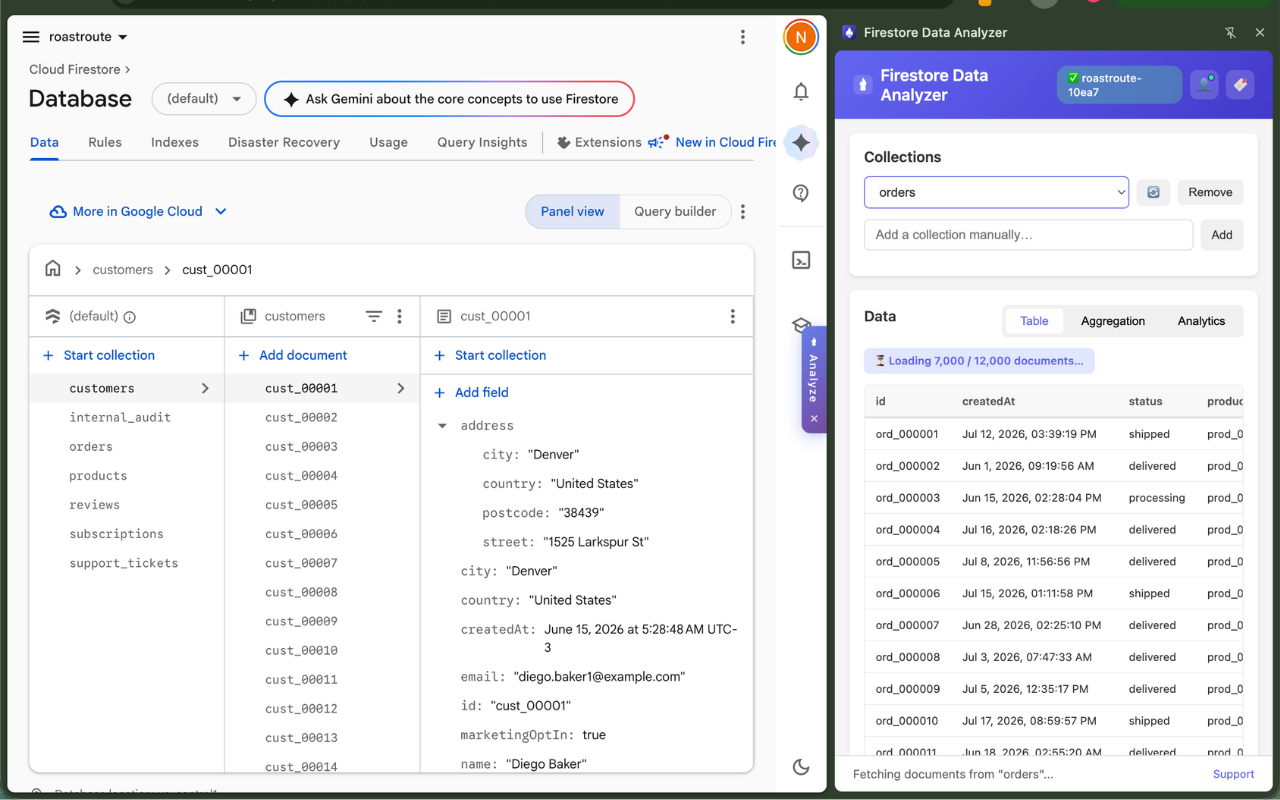
Selecting a collection starts loading immediately: documents stream in while a progress indicator shows Loaded N / M against the collection's total count. The first rows appear right away even on large collections, and you can start working while the rest loads in the background.
Table view
The Table tab shows your documents as rows with fields as columns. More rows appear automatically as you scroll, so even very large collections stay smooth. Switching to another collection always refreshes every tab, so you never look at stale data.
Aggregation
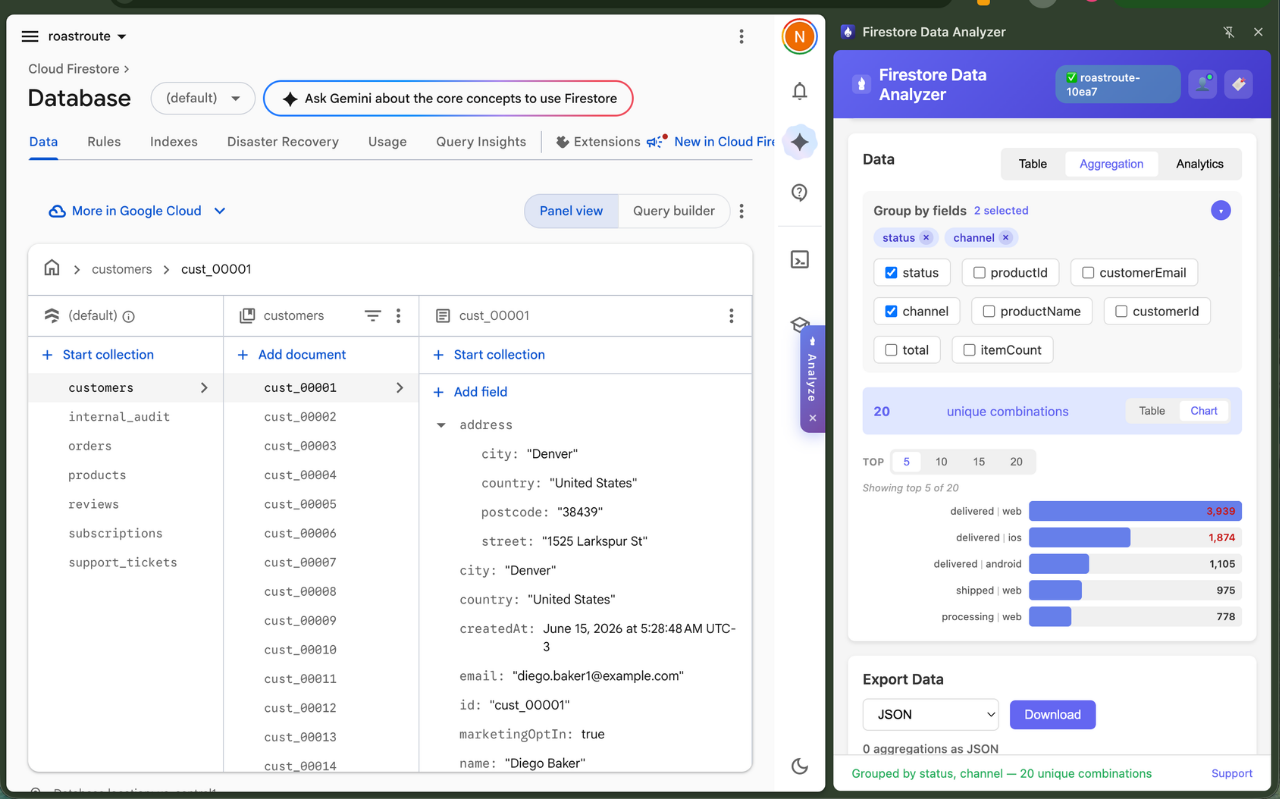
The Aggregation tab answers "how many per …?" questions. Tick one or more fields and the group-by computes instantly and live — no calculate button. Results show as counts with proportional bar charts.
- Tick or untick fields to reshape the grouping on the fly.
- Use the Top N selector (5 / 10 / 15 / 20) to focus the chart on the most frequent values; your choice is remembered across sessions.
- While a large collection is still loading, results carry a Partial — N of M docs badge and recompute automatically once the load completes.
Analytics & charts
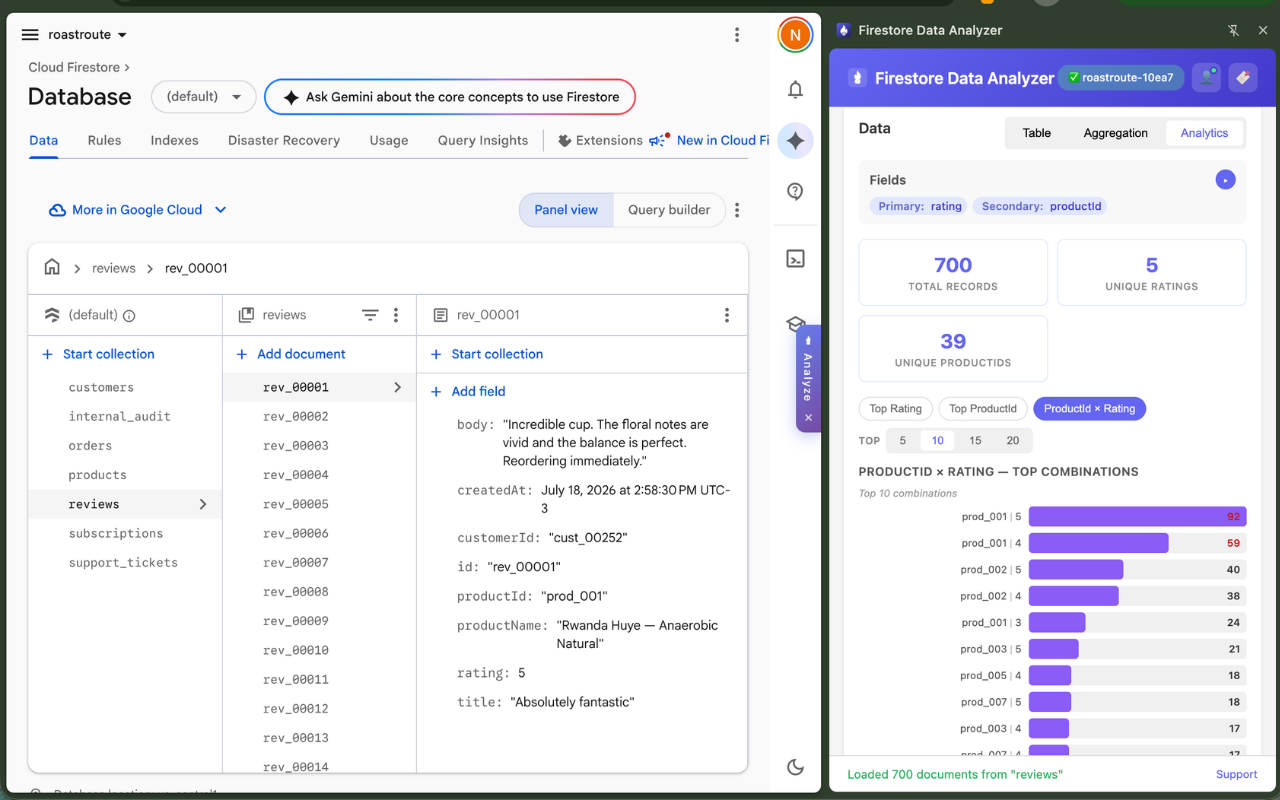
The Analytics tab turns your documents into charts. Compact metric cards summarize the data on top; below them, chart-type chips let you switch the single displayed chart in place — no scrolling through a stack of charts you didn't ask for.
- Automatic date detection: if your documents contain a date field (Firestore Timestamp, ISO string, or epoch milliseconds), the default chart is Records per Day — your growth curve, no configuration.
- Field selectors: choose primary, secondary, and tertiary fields to slice by; only chart types valid for your selection are offered.
- Top N: the same 5 / 10 / 15 / 20 picker as Aggregation, shared and persisted.
Exporting data
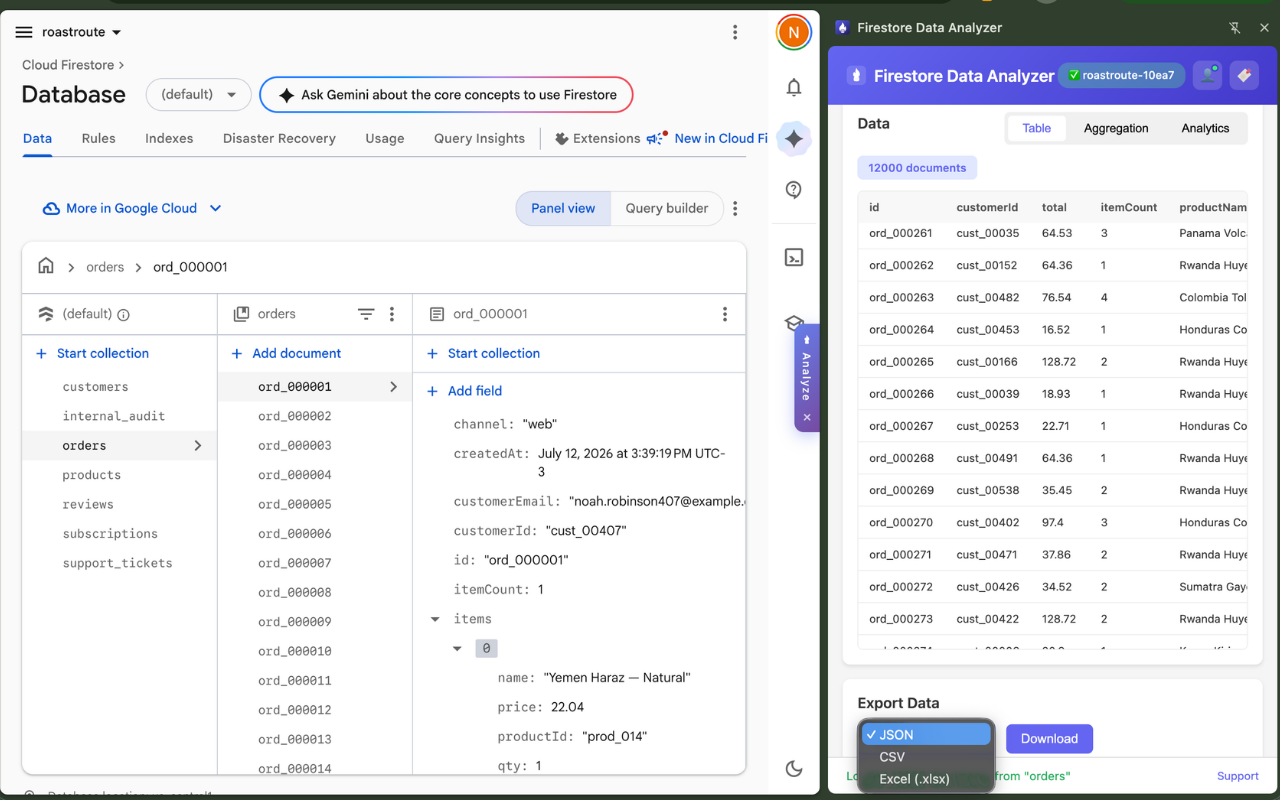
Pick a format and click Download:
- JSON — full-fidelity documents, ideal for backups and scripts.
- CSV — flat rows for spreadsheets and data tools.
- Excel (.xlsx) — ready to open in Excel or Google Sheets.
Export activates once a collection has fully loaded, so a download always contains the complete collection — never a partial snapshot.
Security-rules helper
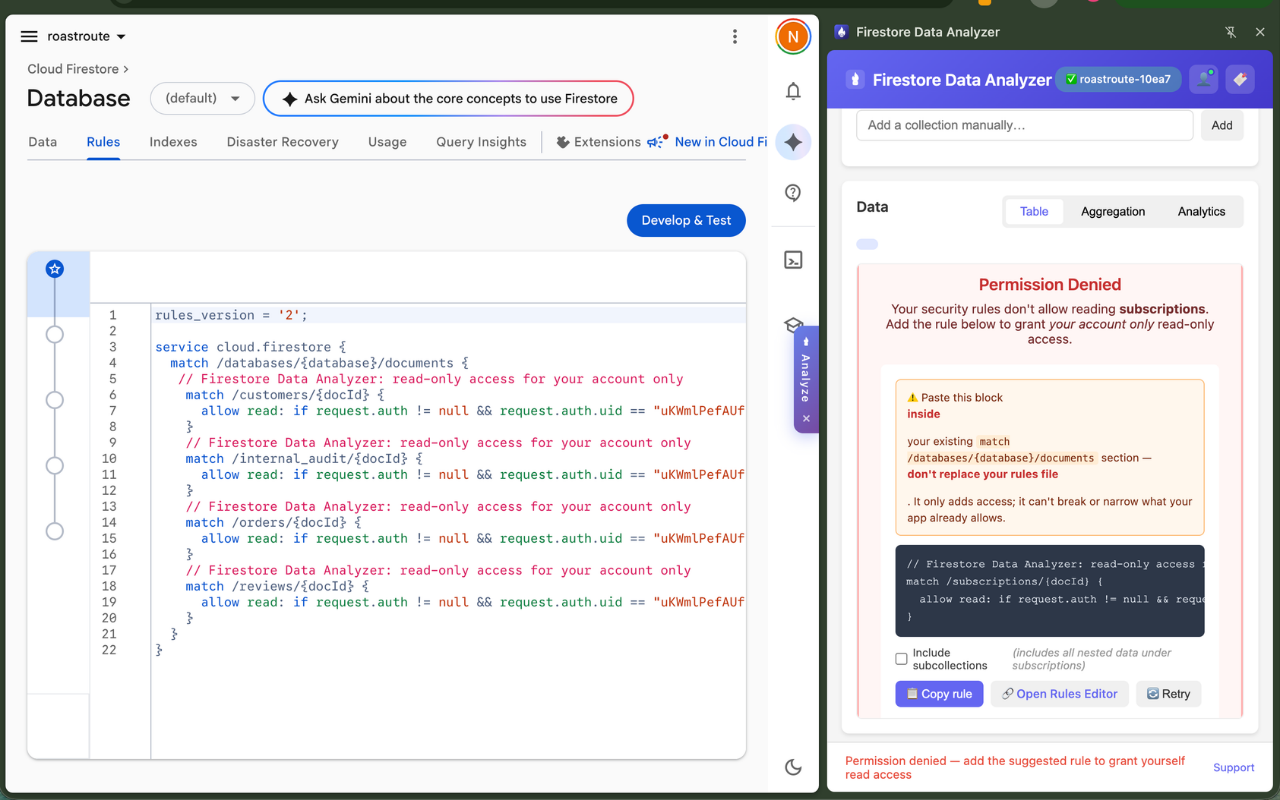
If your Firestore security rules don't grant read access, a fetch fails with permission denied — and instead of a dead-end error, the extension opens a guidance panel that fixes it in under a minute:
- A generated rule snippet, pre-filled with the exact collection you tried and your signed-in user's UID — read-only, scoped to you alone. Pasting it cannot expose data to anyone else.
- A copy button and a deep link straight to your project's rules editor in the Firebase console.
- A Retry button to verify the fix immediately.
- An opt-in recursive variant if your data lives in subcollections (clearly marked as including all nested data).
Add, don't replace. Paste the generated block inside your existing rules, alongside what's already there. Firestore rules combine permissively, so adding this block can't break or narrow your app's existing access — but replacing the whole file would.
Example of what the generated snippet looks like (yours is pre-filled with your real collection and UID):
match /orders/{docId} {
  allow read: if request.auth != null
              && request.auth.uid == "YOUR_UID";
}
Privacy model
The extension is local-only by design: data flows directly between your browser and your own Firebase project. There are no servers, no analytics, and no tracking — nothing you do in the extension is sent anywhere. Full details in the privacy policy.
Console handle & badge
On Firebase console pages, a slim Analyze tab sits flush against the right edge of the window — one click opens the side panel. After opening the panel (or if you dismiss it with ×), it collapses to a thin sliver that stays out of your way; clicking the sliver still opens the panel directly. The state is remembered across tabs and browser restarts, and the handle re-expands when the extension captures a new project's config — the moment it becomes useful again.
The toolbar icon also shows a small badge dot while you're on a Firebase console tab, as a reminder that the analyzer is relevant there. Clicking the toolbar icon opens the side panel directly.
Troubleshooting
The collection dropdown is empty
Open your project's Firestore → Data tab in the Firebase console and browse your collections once — the dropdown fills automatically. You can also type a collection name manually.
"Permission denied" when loading a collection
Your security rules don't grant your signed-in user read access. Use the rules helper panel that appears — it generates the exact rule you need.
"Config not found" / can't connect
The extension picks up your project's connection details from the Settings → General page of the Firebase console. If you haven't been there yet, a banner in the corner of the console offers to take you — click it, and the connection happens by itself. Then reopen the side panel.
Switched to a different Firebase project?
The extension stays connected to one project at a time. When you browse a different project in the console, a banner lets you know and offers to switch — one click takes you to the right page, the connection happens by itself, and the collection list and charts start fresh for the new project.
Sign-in keeps failing
Remember you're signing in to your own project's Firebase Authentication — not a Firestore Data Analyzer account (there is no such thing). See Signing in and Password reset.
Export button is disabled
Export unlocks when the collection finishes loading, so downloads are never partial. Watch the Loaded N / M counter — on very large collections it can take a little while.
FAQ
Does my data leave my browser?
No. The extension talks only to Firebase (Firestore and Firebase Authentication) using your own project credentials. There are no other endpoints, no analytics services, and no servers of ours.
Do I need a paid Firebase plan?
No. It works on every plan, including the free Spark plan. Reads count against your project's normal Firestore quota, exactly as if your own app performed them.
Can it modify or delete my data?
The extension only reads. The security rule it suggests is read-only too, so even the access you grant it can't write anything.
Why do I have to sign in at all?
Firestore access is governed by your project's security rules, which almost always require an authenticated user. Signing in with your own project's Auth means access control stays entirely in your hands.
Which permissions does the extension request, and why?
Only the minimum it needs: saving your settings on your own device, showing the side panel, and connecting to Firebase's services and the Firebase console. Nothing else — no browsing history, no access to other sites.
Support
Questions, bug reports, or feature ideas? Email niknackster@gmail.com — we read everything.